
ExcelGeek's Freedom Account Spreadsheet
| Price: | $9.88 |
| Creator/Developer: | ExcelGeek |
| Date/Version: | August, 2013 (Version 7.0) |
| System Requirements: | 32-bit Windows XP; 32- or 64-bit Windows 7 or later; |
| or Mac OS X 10.8 Mountain Lion or older (NOT certified for 10.9 Mavericks at this time) | |
| Software Requirements: | 32-bit Excel 2007 or later (Windows); |
| or Excel 2011 for Mac | |
| Other Requirements: | Macros Enabled in Excel [What's this?] |
[NOTE: This spreadsheet will NOT work with OpenOffice or Google Docs.]
[MAC USERS: This spreadsheet will NOT work with Numbers, or with Excel 2008 for Mac. Excel 2011 for Mac is required. Also, OS X 10.8 Mountain Lion or older is required (NOT certified for 10.9 Mavericks at this time). ]
One of the most beneficial things I ever did for my finances was to embrace the concept of Freedom Accounts, as popularized by Mary Hunt.
It didn't take long for me to figure out that the Freedom Account concept is a tremendous idea. However, it absolutely begs for a spreadsheet to manage the numbers and subaccounts. To that end, being a Certified Computer Dork, I set about building one.
I came up with the Freedom Account spreadsheet you can find at my Excel page. It's free, fairly simple, and works okay ... if you don't mind 20+ page workbooks.
Really, though, I prefer my spreadsheets to be more compact. Let's face it — no one wants to click through sixteen pages of subaccounts. Plus, some automation is nice, too. The problem is that my knowledge of Excel's more esoteric functions, and of Visual Basic, are not so developed as to make this a reality.
Enter a gentleman — from western New York, as it turns out — who goes by the moniker of ExcelGeek.
As a fellow fan of Mary Hunt's and reader of Debtproof Living (formerly Cheapskate Monthly), ExcelGeek created his own Excel spreadsheet to handle his family's Freedom Account.
Big deal, you're thinking. Anybody can make a spreadsheet.
Yes. But not just anyone can make a spreadsheet like this:
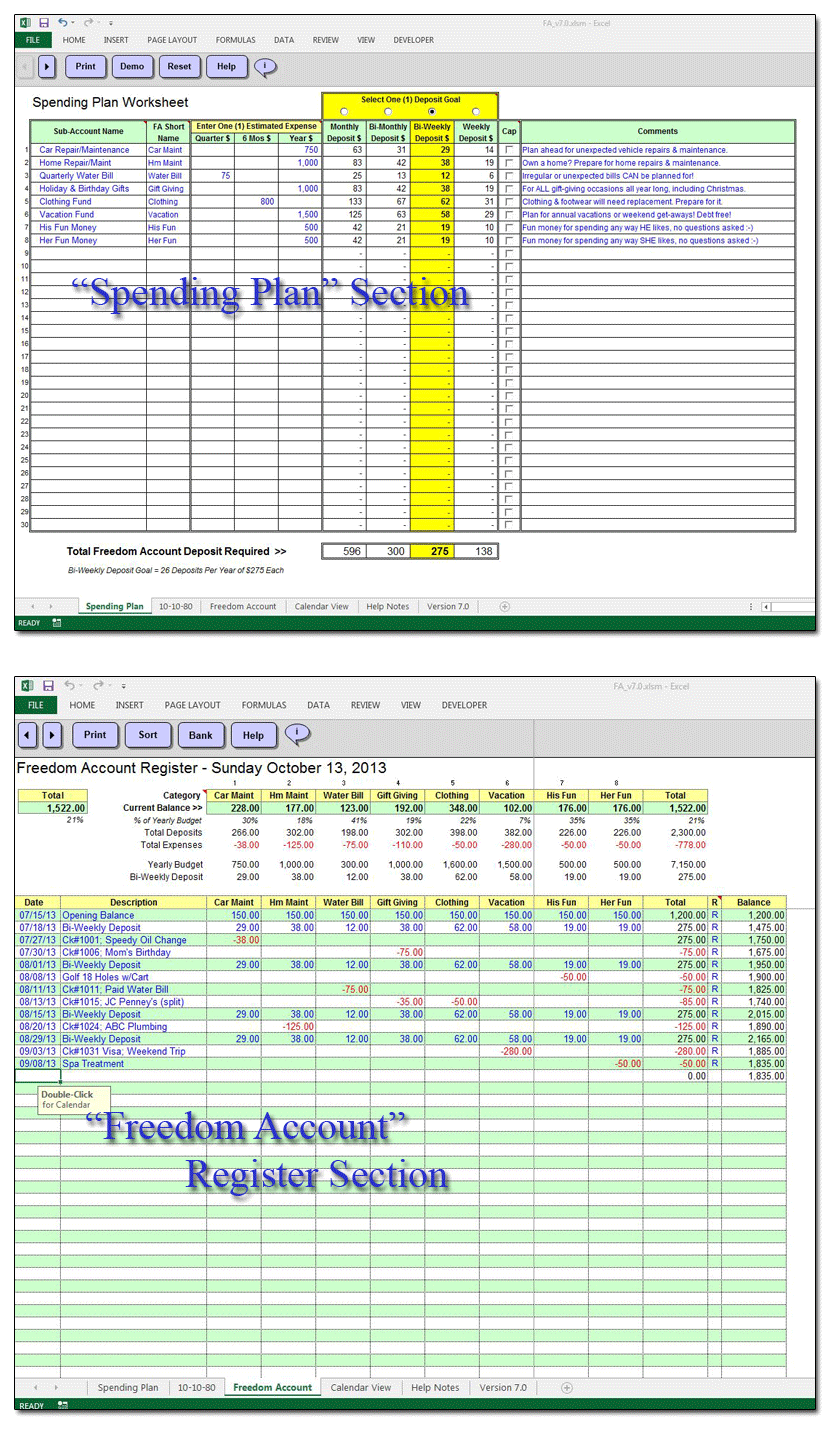
With over 20 years of experience building spreadsheets professionally, ExcelGeek created a high-octane, Freedom-Account-tracking beast. A guy can learn a lot about spreadsheets in 20 years ... so you can only imagine how sweet his creation was. He shared it with family members and friends. Again and again, rave reviews poured in.
In July 2005, he stumbled upon It's Your Money. He emailed me, asking if I'd like to take his FA spreadsheet for a spin. He thought he had something worthwhile, and he wanted my opinion on it.
So I tried out his spreadsheet (an earlier version, of course). And here's my opinion:
ExcelGeek's sleek and spiffy Freedom Account spreadsheet is everything I wished mine could be. It took about three seconds for me to dump my humongous, amateurish spreadsheet in favor of his much more compact and tricked-out version. The difference was astounding.
Here's the story: I believe that this spreadsheet, now in its seventh version, is fantastic — and probably the best I've ever seen, as far as accomplishing a specific task and doing it simply and intuitively. I really believe that my readers who use Excel to help them with their finances, and who are devoted to the Freedom Account concept, will find that this spreadsheet benefits them immediately.
Because ExcelGeek wished to offer his creation to the public, but wasn't terribly interested in building his own website to promote it, I agreed to offer his Freedom Account spreadsheet for sale here at IYM.
Screenshots and Details
Now in version 7, ExcelGeek's Freedom Account spreadsheet consists of six separate workbook pages. (Screenshots here are largely from Excel 2013.)

The first and third pages, "Spending Plan" and "Freedom Account," handle the bulk of the work. They're where your Freedom Account data is entered and tabulated. The first page, “Spending Plan,” is where you organize and set up your sub-account categories (now up to 30 of them!) and expense amounts. The “Freedom Account” page is where your transactions (deposits and withdrawals, similar to a checkbook) are recorded. The fifth page, "Help Notes," contains instructions and tips for using the workbook.
If you like, before you purchase the Freedom Account spreadsheet, you can download the Help Notes in PDF form.
Main / Setup Page ("Spending Plan" tab)
Here's the first worksheet — the "Spending Plan" tab. Here's where you'll set up your Freedom Account goals and create all your subaccounts:
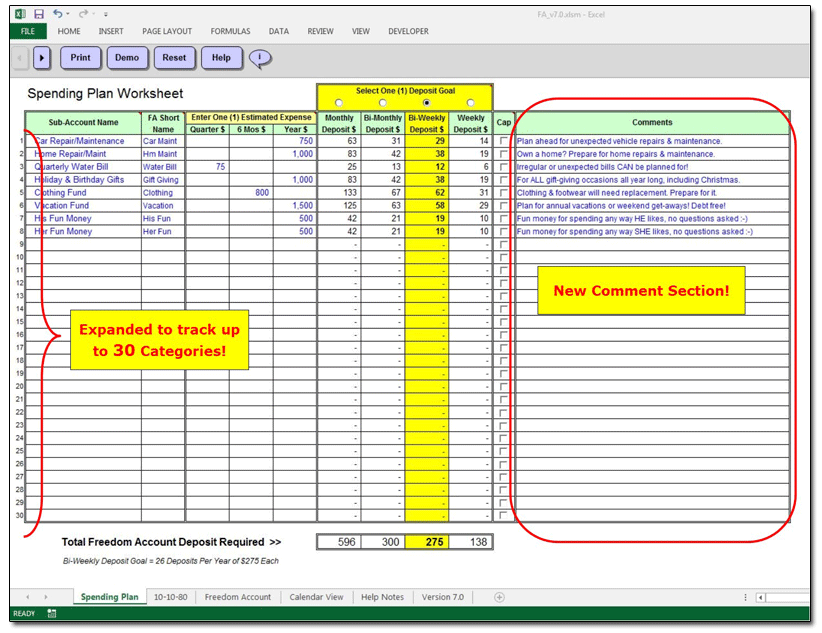
This latest version of the Freedom Account spreadsheet can handle up to 30 subaccounts. To get started, you'll name your subaccounts. Each subaccount gets both a full name, and a "Short Name," which is simply the full name abbreviated for space. Once that's done, your subaccounts are viewable at a glance.
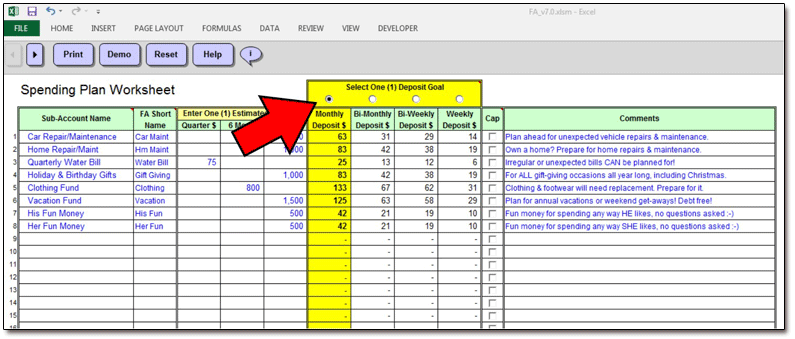
You'll then tell the spreadsheet how much you need in each subaccount in order to fully fund it, as well as how often you'll need to withdraw that money (monthly, quarterly, or yearly). The spreadsheet crunches the numbers for you and breaks down your necessary deposits in the manner you select: Monthly, Bimonthly, Biweekly, or Weekly:
Don't you wish you could build spreadsheets that do this? Yeah, me too.
You would then enter "600" in the "Estimated Expense / 6 Mos" section for that subaccount. You plan on depositing money into your Freedom Account on a monthly basis, so you select a Deposit Goal of "Monthly Deposit $" via the radio button at the top of the sheet.
The spreadsheet then calculates that in order to fully fund your Auto Insurance subaccount in six months' time, you will need to make monthly deposits of $100. (It also shows you how much you would need to deposit if you were doing so on a bimonthly, biweekly, or weekly basis.)
New for Version 7.0: As well as space for 30 subaccounts, there's now a comment field for each one. No more wondering why you set up your subaccounts the way you did ... or what purpose each one serves!
New Navigation Buttons
For those folks who get a kick out of buttons, you'll be happy to know that ExcelGeek's newest Freedom Account spreadsheet has navigational buttons on each page:
Spiffy, huh?
Using the Freedom Account Register
("Freedom Account" tab)
This is the page where you'll enter your Freedom Account transactions (all deposits and withdrawals) and view all balances. This "Freedom Account" worksheet also shows a handful of other data about your subaccounts, such as the percentage of each subaccount's goal you've funded.
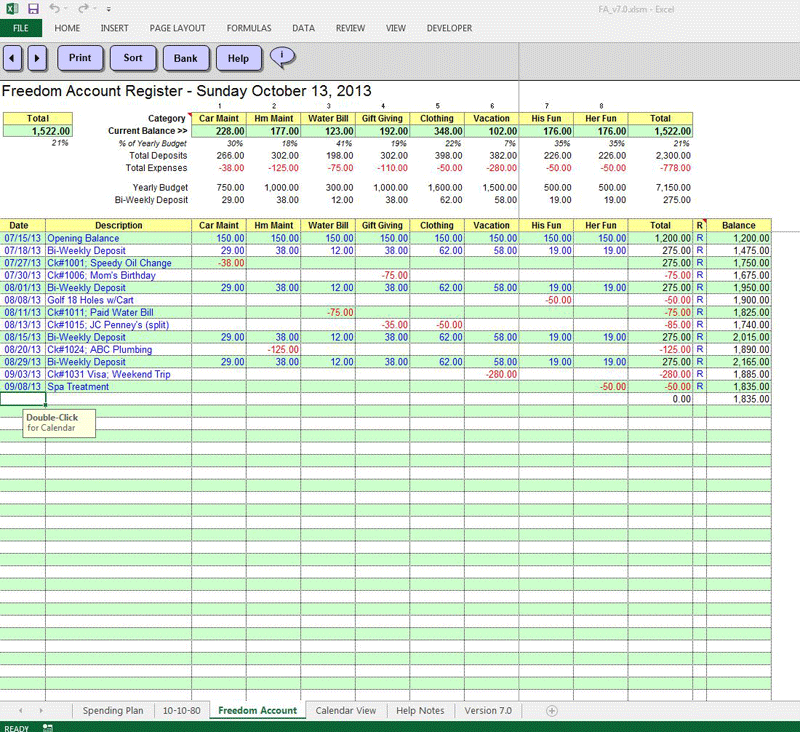
As stated before, the spreadsheet handles up to 30 subaccounts. You'll see them all here, with a list of your transactions sorted by date. When the time comes to enter a transaction which affects your Freedom Account, you'll simply fill out the register with the details.
However, this page is also where the automation shines! When the time comes for you to make your Freedom Account deposit — whether you do so on a monthly, bimonthly, biweekly, or weekly basis — the spreadsheet can automatically enter and categorize your deposit to the guidelines you specified on the Setup Page.
What this means is that if you have 17 subaccounts, and you make 1 monthly deposit to fund all 17 subaccounts, then the spreadsheet can automatically enter a single deposit transaction on the date you select ... and split the correct amount of money into all your subaccounts with a few simple clicks of the mouse.
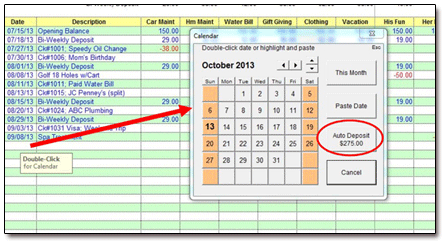
No more clicking through 17 different worksheet pages to make your monthly deposits! Now it's done with a couple of mouse-clicks.
Doesn't get much easier than that!
Deposit Goals w/Comments
This is the section of the Main / Setup Page ("Spending Plan" tab) where the user specifies his or her Freedom Account goals and goal amounts:
Once you've told the spreadsheet how much money you need to set aside for each expense category, you'll select one of the four radio buttons to choose the frequency of your deposits: monthly, bimonthly, biweekly or weekly.
Most users, for instance, make one deposit per month into their Freedom Accounts. That single deposit is simply the total of all amounts required for each of your subaccounts on a monthly basis.
Calendar w/Automated Entry
Here's the best feature of them all, in my opinion. This neat trick hides behind the scenes in the "Freedom Account" register worksheet. Its code allows the user to automatically enter and split up a regular deposit with a few clicks:
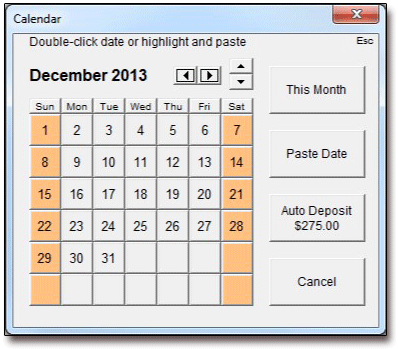
All you need to do to automatically enter your Freedom Account deposit is to double-click on the next blank "Date" cell in your Freedom Account register. The Calendar window pops up. Select the date for your deposit from the Calendar, click the "Auto Deposit" button, and the spreadsheet splits the correct deposit amounts into each of your subaccounts — no matter how many you have!
Bank Balance Calculator
This is the feature which allows users to quickly identify what amount of their bank balance is not associated with their Freedom Account.
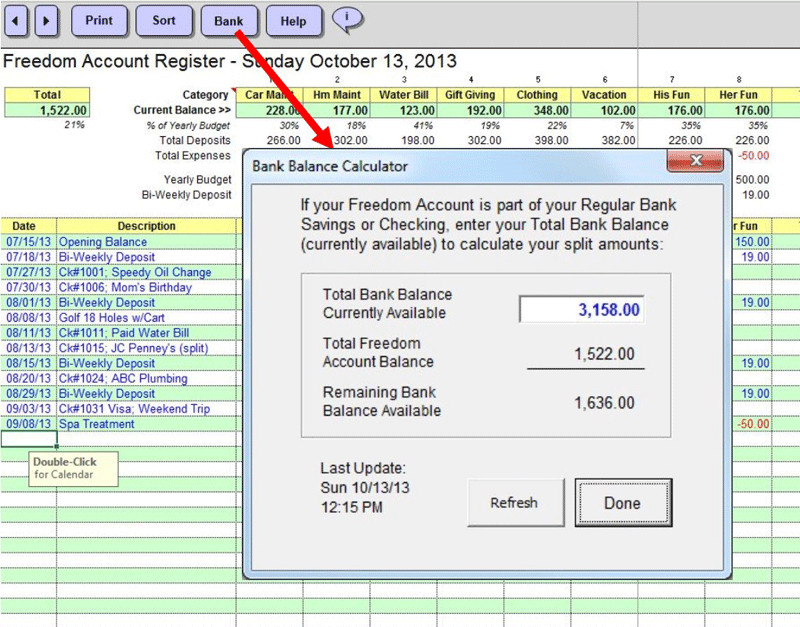
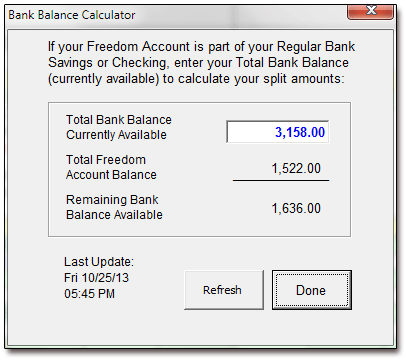
This tool is included since so many folks keep their Freedom Account money in the same savings or checking account as their Emergency Fund or other funds. (We recommend that you use a separate account for your FA money, and only transfer the FA money to checking when you need it to pay a bill ... but apparently a few folks like to keep all their eggs all in one basket.)
As long as you've entered all the correct transactions and transaction amounts, the Freedom Account spreadsheet knows your Freedom Account balance. So, once you enter your total bank account balance into the Bank Balance Calculator, the spreadsheet can tell you how much of that bank balance remains after your Freedom Account balance is subtracted.
And voila — now you know how much of your bank account balance is not assigned to your Freedom Account!
Automated Year-End And Reset Functions
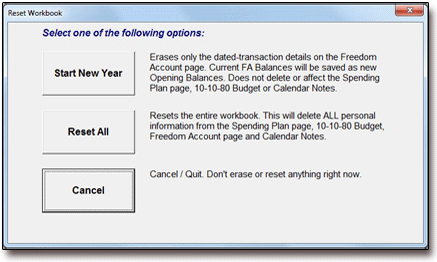
For mere mortals like myself, resetting the FA spreadsheet each year (it's good practice to do so) can be a bit of a pain. Of course, if you're ExcelGeek, you know how to make Excel do this sort of thing for you with the click of a button. Which the FA spreadsheet does.
10-10-80 Budgeting Feature
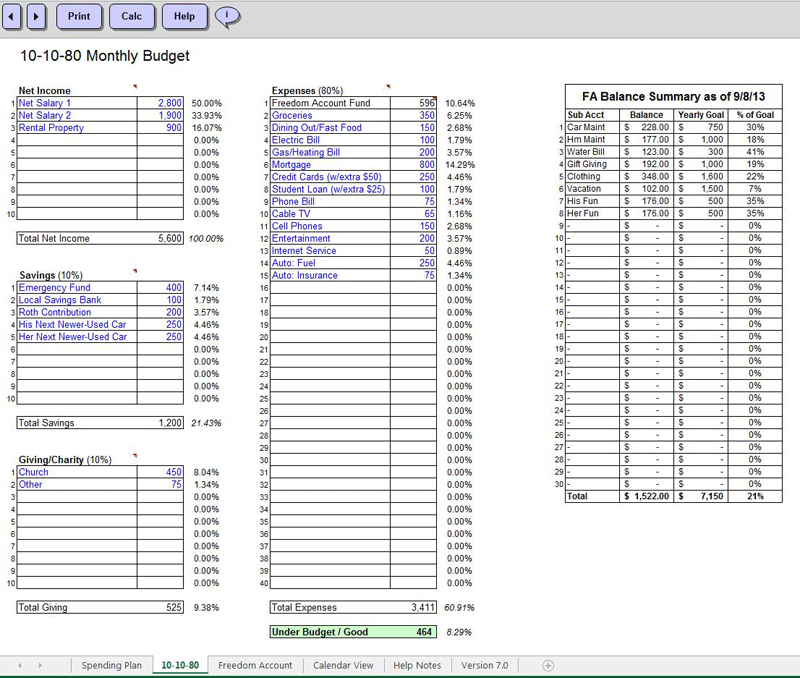
ExcelGeek also built an optional budgeting feature into his Freedom Account spreadsheet. Whether you use it or not is up to you — its inputs have no effect on the rest of your Freedom Account data — but having this simple budgeting tool included with the FA spreadsheet has been a great convenience for some folks. (It's located on the "10-10-80" tab, by the way!)
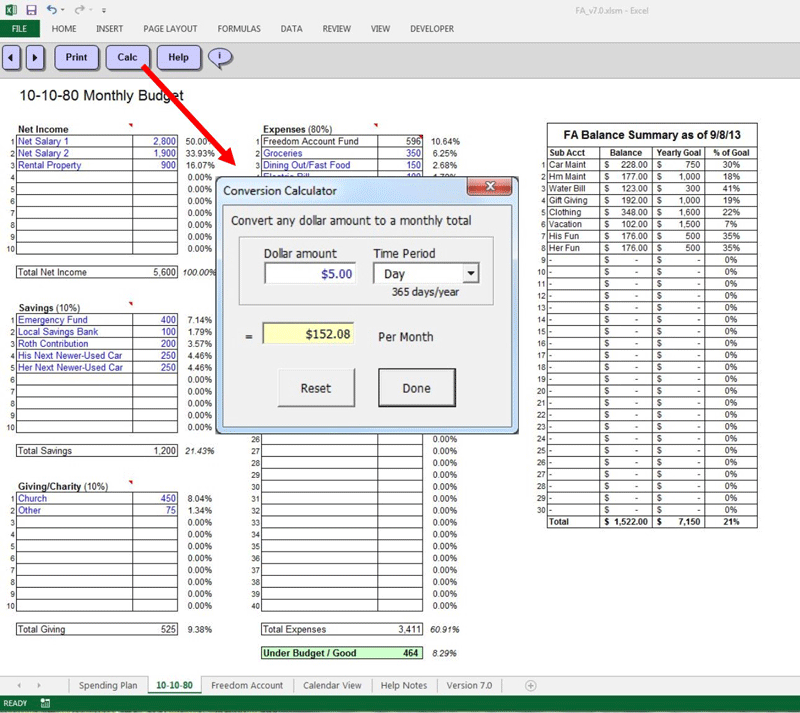
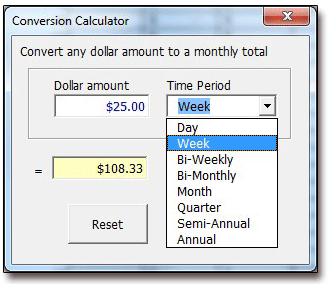
NEW! The 10-10-80 budget worksheet now includes a helpful calculator for converting any amount into a monthly total:
Perpetual Calendar Feature
Clicking the "Calendar View" worksheet tab brings up a calendar that looks like so:
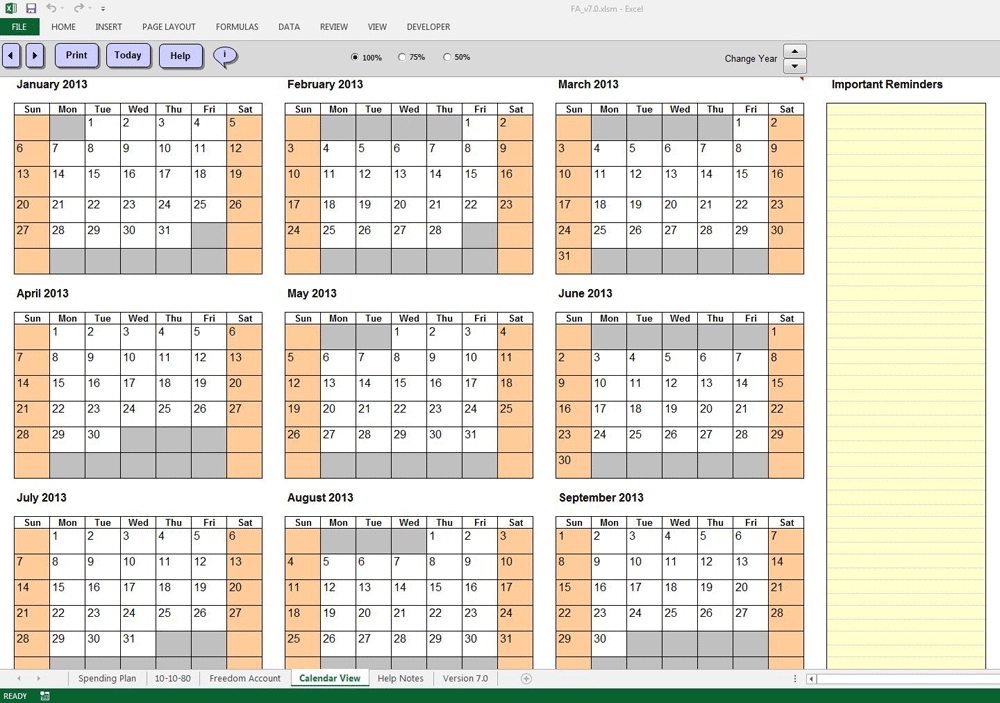
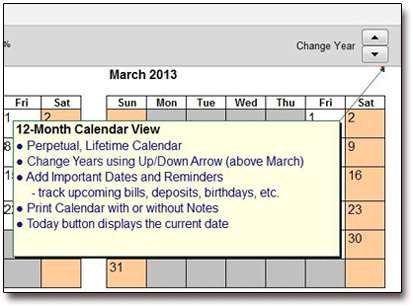
Use the perpetual calendar to help track whatever you like — bills, birthdays, upcoming Freedom Account transactions ... you name it!
Plus a Little Inspiration...
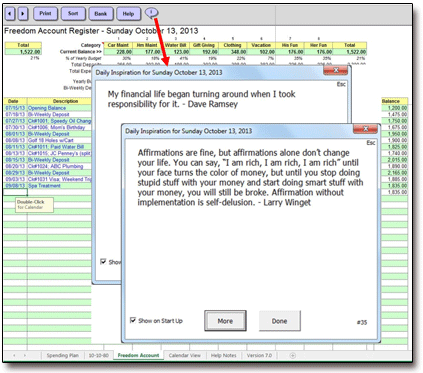
Need a little motivational boost from time to time? Click the FA spreadsheet's quote icon in each worksheet's navigation bar, and you'll get just that:
Worksheet: Instructions and Tips
This worksheet contains instructions for using the spreadsheet and adapting it to your household's needs.
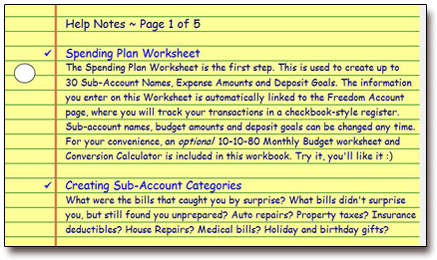
I've also made the Help Files and instructions available for download as a PDF file. They're free for the clicking. I figure that by doing this, readers can get a better idea for the spreadsheet's purposes, capabilities, and operating requirements. (Of which, incidentally, there aren't many!)
What Sets It Apart?
1. Easy setup! The Spending Plan worksheet automatically creates the categories and amounts in the Freedom Account Register and Auto-Deposit option without ANY duplication of effort on your part. There is no copy-and-pasting required! Subaccount names and budget amounts can be easily changed, or even stopped, at any time.
2. NEW! 30 subaccount columns. The Freedom Account Register can display up to 30 subaccount columns, and it does this on one page. All totals are on one page, ready to see at a glance. (With most workbooks, you have to shift between multiple pages to view transaction activity or totals.)
3. Easily change Deposit Goals. Your deposit goals are easily changeable according to user preference: Monthly, Bi-Monthly, Bi-Weekly, or Weekly.
4. Built-in demonstration example. Get a quick overview of how the spreadsheet works via the 'Demo' button on the Spending Plan page. Click the button and the spreadsheet fills itself out with example data ... so you can get a feel for how to enter your own numbers.
5. Easy "anytime" reset! Built-in 'Reset' button on the Spending Plan page clears all data quickly if you need a fresh, blank spreadsheet. (Great for use after you've taken a look at the spreadsheet filled out with data from the 'Demo' feature above.)
6. Easy "new year" reset! The spreadsheet also includes a "Start New Year" option, which auto-magically starts a new workbook for the new year (all budget goals are yearly). It resets all transaction details, copies end-of-year balances to new opening balances, and preserves all of your original subaccount categories and deposit goals!
7. Extensive HELP features. Extensive Help Notes, pop-up comments, and error trapping make using the workbook essentially goof-proof!
8. "Automated deposit" feature. Auto-Deposit feature automatically splits and posts regular deposits when you're ready for them to occur.
9. Bank Calculator. The Bank Calculator feature helps track combined (split) bank account / Freedom Account balances. Useful for folks who keep their Freedom Account funds in the same bank account as other savings.
10. Hit a goal; cap its payments! ExcelGeek's "Cap" feature allows you to easily stop or "cap" the Auto-Deposit amount for any subaccount category. This is useful whenever any of your categories become 100% funded, or if you wish to temporarily stop Auto-Deposit funding for that category.
What's the Price?
 I'm selling the Freedom Account spreadsheet for $9.88. Of this amount, ExcelGeek gets $8, and IYM gets $1.88 (minus any fees).
Following your electronic payment via Paypal, you'll be able to download the spreadsheet instantly. (Note: This does not apply to Paypal "eCheck" payments, as they may take up to five business days to clear.)
Carries a Full 30-Day Guarantee
 Like all of my for-pay spreadsheets, ExcelGeek's Freedom Account spreadsheet is guaranteed.
If you're not happy with it for some reason, just contact me or ExcelGeek within 30 days of purchase, let us know what's up, and we'll refund your money.
Ready to Purchase?
Purchase & Download
Downloading the Freedom Account spreadsheet couldn't be easier!
Simply pay with either PayPal or Google Wallet, and then download ExcelGeek's Freedom Account spreadsheet instantly! (Credit/debit cards work great; no sign-up required.)
Via Paypal:

If you're looking for a fantastic way to track your Freedom Account, I'm positive you'll find that ExcelGeek's Freedom Account spreadsheet is the best tool out there for the job — and for your money.
If your current method of Freedom Account tracking is frustrating and time-consuming, then this powerful spreadsheet will work wonders for you.
It's easy to set up.
It's compact.
It's intuitive and simple to understand.
All your Freedom Account subaccounts, balances, and transactions are displayed on a single workbook page. The days of clicking through page after workbook page just to check your subaccount balances (like you'd do with my old Freedom Account spreadsheet) and enter transactions? Those days are done.
But, perhaps best of all, ExcelGeek's Freedom Account spreadsheet automates a large portion of your day-to-day Freedom Account maintenance. I can honestly say that it has cut my FA maintenance time by 90 percent.
Questions or Comments?
Got something to say about the Freedom Account spreadsheet? Or do you have a question? Feel free to email either ExcelGeek or the IYM Webmaster.
We'll respond to you as soon as possible!


